Now You Can See Every Email and Text We Sent
Killswitch now shows every email and text it sent you and to your beneficiaries in Settings → Activity. The Communication Log lists Date, To, What, and Status in plain English, including why a delivery failed. Nothing about how delivery works changed. You can finally see the receipt trail.
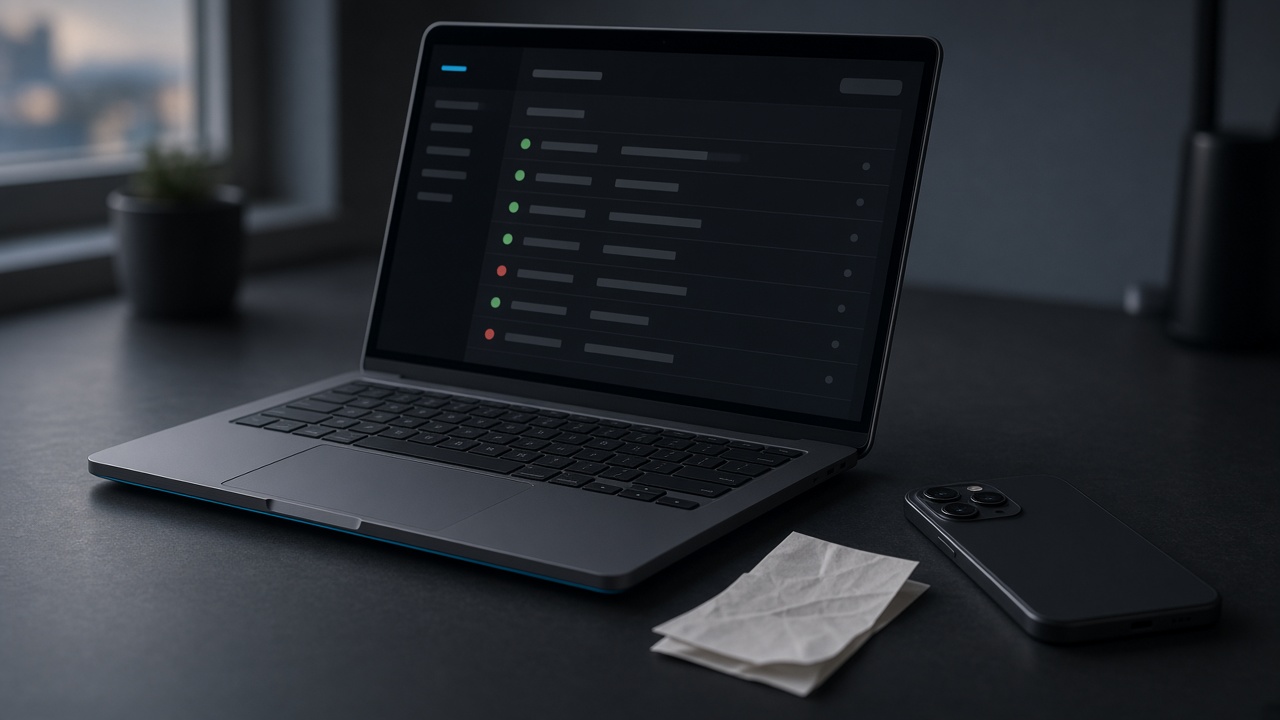
You set a check-in schedule. You name the people who should get the package. You trust Killswitch to send the mail and the texts when it matters.
Until now, that trust was mostly one-way. The messages left. You hoped they landed.
Killswitch shipped Settings → Activity so you can finally see that trail. Nothing about how delivery works changed. Every email and text we sent you, and to your people for you, is listed with plain-English reasons when delivery fails.
What is under Settings → Activity?
Signed in, open Settings → Activity. Account Activity comes first, then the Communication Log, with Emails and Text Messages below.
Account Activity is scoped to you alone: sign-ins, check-ins, vault changes, and other actions you took, with time and IP. If something looks wrong, change your password and write hello@killswitch.app.
Communication Log is next. That is the delivery visibility layer: an intro, Delivered and Failed counters, then separate Emails and Text Messages sections you scroll to. Same story in both places: what left, who it went to, and whether it landed.
What does the Communication Log show?
Every email and SMS tied to your account shows up here. That includes messages to you, and messages we sent on your behalf to beneficiaries.
You see the beneficiary To addresses. Your own address carries a small "you" badge so it is easy to tell apart.
At the top, two counters cover all history:
- Delivered covers email that landed as delivered or opened, plus SMS that landed as delivered.
- Failed covers email that failed or bounced, plus SMS that failed or came back undelivered.
If a counter cannot load, you may see a dash instead of a number. That is a load error, not a claim that the count is perfect forever.
The table is paginated twenty-five rows at a time. Email rows and SMS rows share the same shape: Date, To, What, Status.
How are email and SMS statuses shown?
Email status is color-coded.
Green means Delivered or Opened. Ghost means Sent or Sending. Red means Failed or Bounced, with a plain reason underneath.
SMS is simpler. Green is Delivered. Red is Failed (including undelivered), again with a plain reason.
Raw Postmark and Twilio strings stay admin-only. You get English. Support gets the rest.
What does "Opened" mean, especially on Gmail?
Opened is not proof a human read the message.
For addresses at @gmail.com and @googlemail.com, the status can show Opened* with a footnote. Gmail often preloads images, so that asterisk can fire before anyone opens the mail. Treat Opened* as delivered. It is not a human-read receipt.
That asterisk applies only to consumer Gmail and Googlemail addresses. Google Workspace domains do not get the star.
For every other provider, Opened still means our mailer saw an open signal. It still does not mean a person sat down and read the letter. Delivery landed. Reading is a different claim, and we do not make it.
How are failures explained?
When something fails, the log does not dump a provider code at you. It uses a small set of human reasons.
If an address previously bounced or was marked as spam and is now refusing our mail, you will see: "This address is refusing our mail. It previously bounced or was marked as spam. We can help fix this."
If the recipient's provider flagged the message as spam: "The recipient's provider flagged our mail as spam."
If the address bounced and may no longer exist: "The address bounced. It may no longer exist."
Anything else lands as "Delivery failed." or "Delivery failed. Our team can look into it."
Either way, the path is the same: hello@killswitch.app. We can look at the raw provider detail on our side. You should not have to.
What is the Communication Log not?
A few boundaries, because overclaiming breaks the trust we are trying to build.
- This is not a beneficiary inbox. Only the account owner sees the Communication Log.
- It covers email and SMS only. No push, no in-app alerts, no WhatsApp.
- It is not proof a human read the message, especially Opened*.
- Nothing about how we deliver has changed. Same delivery as before. You can just finally see it.
- It is not a full admin audit. Account Activity is actor-scoped to you. Communication Log is owner-keyed to your account's mail and texts.
- Counters can show a dash on a load error. Do not treat them as a perfect forever scoreboard.
Why does delivery visibility matter?
A deadman switch is a delivery promise. The promise is only as strong as the messages that actually leave and land.
You already get check-in reminders and the system that sends them. What you could not do before was open one place and walk the full history: every email, every text, every To address, every status, in language a person can read without a support ticket.
That is what Settings → Activity is for. Not a new delivery engine. Not a new retry path. Just the receipt trail, finally on your side of the glass.
If a To address looks wrong, or a failure reason shows up in red, fix the contact or write support while there is still time. Quiet failures are the ones that hurt on the day you hope never comes.
What should you do now?
- Sign in and open Settings → Activity.
- Skim Account Activity for anything you do not recognize. Change your password and write hello@killswitch.app if something looks off.
- Open the Communication Log. Check the Delivered and Failed counters, then scroll to Emails and Text Messages and walk the rows.
- If a beneficiary To address is wrong or a failure reason shows up, update the contact or write support.
- Come back after the next check-in reminder or share. Confirm the new rows look right.
You already trusted Killswitch to send the messages. Now you can see that they went.
Nothing about how we deliver has changed. You can just finally see it.
The Communication Log is live in Settings → Activity.
FAQ
Where do I find the Communication Log?
Signed in, open Settings → Activity. Account Activity is first. The Communication Log is next, with Emails and Text Messages sections below.
What messages appear in the log?
Every email and SMS tied to your account: messages to you, and messages Killswitch sent on your behalf to beneficiaries. Rows show Date, To, What, and Status. Your own address has a "you" badge.
Does "Opened" mean someone read the email?
No. Opened means the mailer saw an open signal. For @gmail.com and @googlemail.com, Opened* can fire from image preloading before a human opens the mail. Treat Opened* as delivered, not a human-read receipt. Google Workspace domains do not get the star.
Who can see the Communication Log?
Only the account owner. It is not a beneficiary inbox. It covers email and SMS only (no push, in-app alerts, or WhatsApp).
What do the Delivered and Failed counters include?
Delivered covers email marked delivered or opened, plus SMS marked delivered. Failed covers email that failed or bounced, plus SMS that failed or came back undelivered. A dash means a load error, not a perfect forever scoreboard.
What should I do if a delivery failed?
Use the plain-English reason in the log, fix the contact if the To address is wrong, or write hello@killswitch.app. Support can see raw Postmark and Twilio detail on their side.