Meet the Claude Connector: AI that helps you write — without giving up privacy
Killswitch now connects to Claude. Ask it to draft notes and notebooks for you, everything stays encrypted at rest, and Claude only has access during sessions you start and can revoke.
 The hardest part of getting your affairs in order isn't the encryption or the deadman switches. It's starting. Staring at a blank note, trying to write the letter, list the accounts, or explain where everything is.
So we built something to help with exactly that, without bending an inch on privacy.
Killswitch now connects to Claude. You can ask Claude to draft a note, organize a notebook, or lay out instructions for your family, and it writes the first version for you. The catch, and the whole point, is that you decide when the AI is ever allowed in.
The hardest part of getting your affairs in order isn't the encryption or the deadman switches. It's starting. Staring at a blank note, trying to write the letter, list the accounts, or explain where everything is.
So we built something to help with exactly that, without bending an inch on privacy.
Killswitch now connects to Claude. You can ask Claude to draft a note, organize a notebook, or lay out instructions for your family, and it writes the first version for you. The catch, and the whole point, is that you decide when the AI is ever allowed in.
What Claude can do for you?
Once connected, you can ask Claude things like:
- "Draft a letter to my kids to include in my Killswitch."
- "Turn these rough notes into an organized notebook for my executor."
- "List the accounts I've added and flag anything missing."
- "Set up a deadman switch that shares my Property Deed with my sister." Behind the scenes, the connector exposes a focused set of tools, Claude can read and create notes and notebooks, list your documents, manage beneficiaries, and help configure deadman switches. Outside an active session you've started, none of it is reachable.
How do you connect Claude (one-time setup)?
Connecting takes about a minute. In Killswitch, head to Settings → Connector:
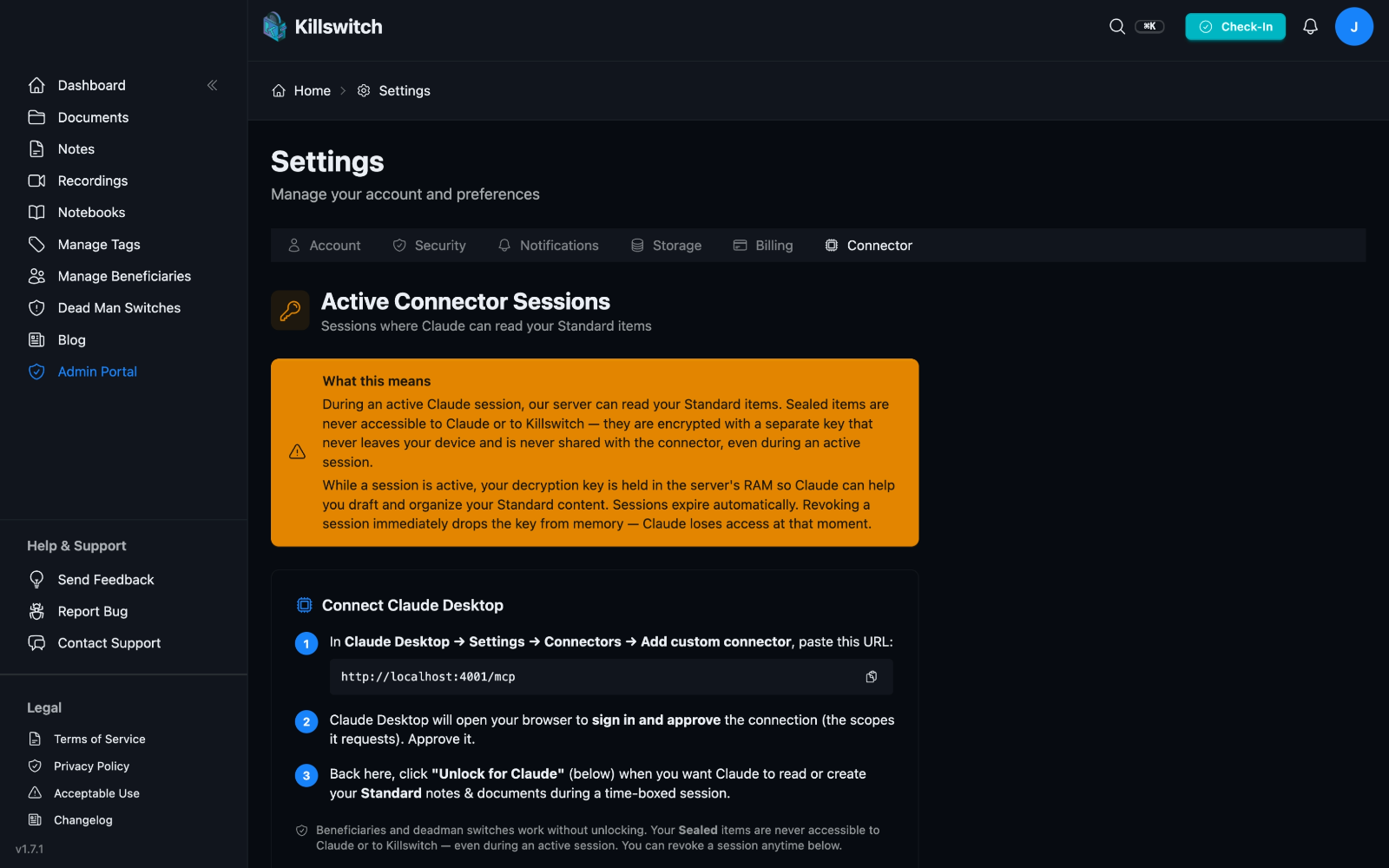 Then, in Claude Desktop:
- Open Settings → Connectors → Add custom connector.
- Paste the Killswitch connector URL:
https://killswitch.app/mcp(you can copy it straight from the Connector tab). - Claude opens your browser to sign in and approve the connection. You'll see exactly which permissions it's requesting, approve them to finish. That's it, Claude and Killswitch are linked. (This is a one-time setup; you won't repeat it.)
Note: connecting Claude does not automatically give it access to your content. It just establishes the link. Access only happens during a session you explicitly start, which is the next step.
Unlock for Claude, on your terms, time-boxed
This is the part we're proud of. Connecting is permission to ask; reading your content requires a deliberate, time-boxed unlock.
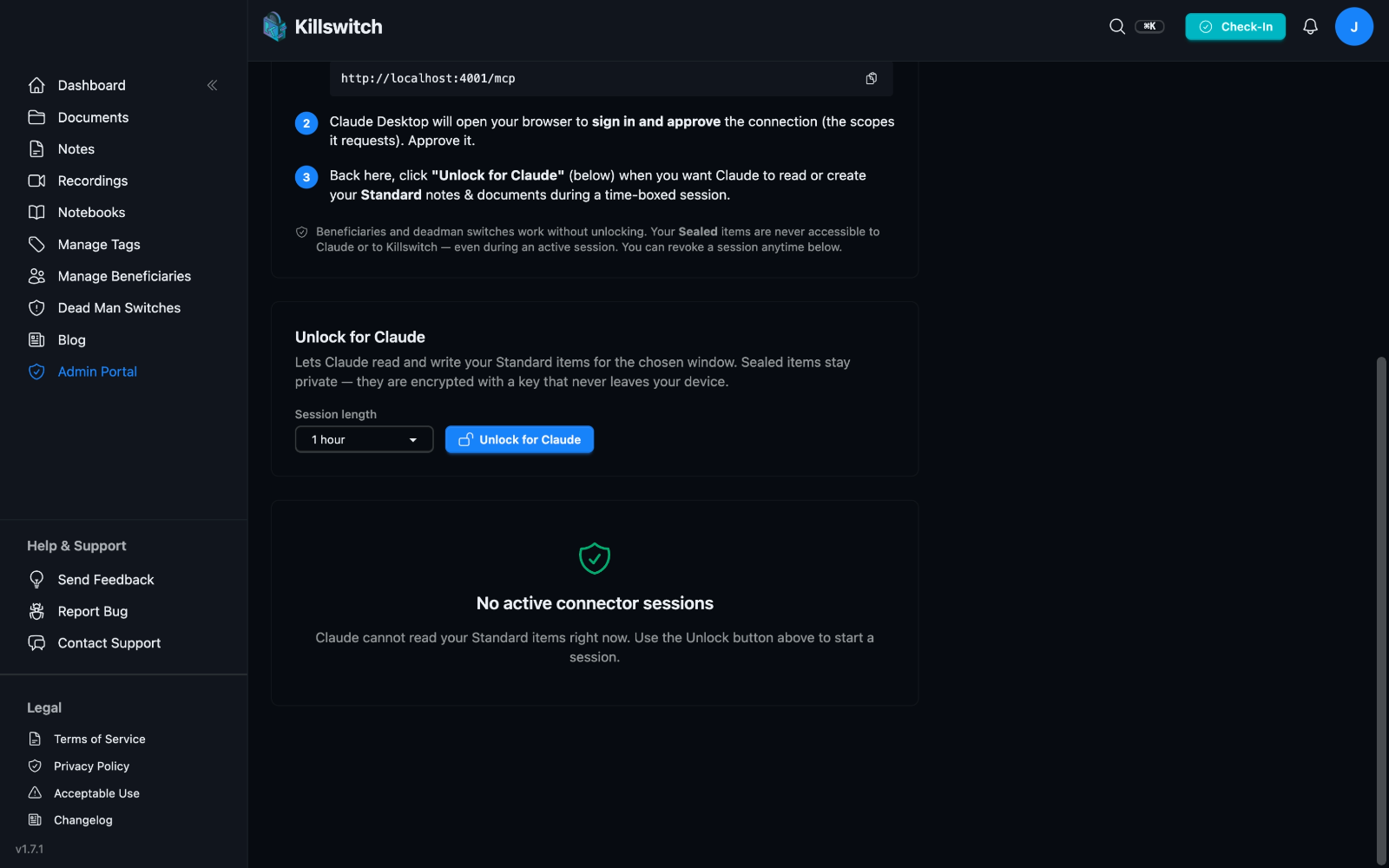 Back on the Connector tab, choose a session length and click Unlock for Claude. For that window, Claude can read and write your notes and documents. When the session expires, or the moment you revoke it, Claude loses access.
Here's exactly what happens, because you should know:
Back on the Connector tab, choose a session length and click Unlock for Claude. For that window, Claude can read and write your notes and documents. When the session expires, or the moment you revoke it, Claude loses access.
Here's exactly what happens, because you should know:
- Everything in Killswitch is encrypted at rest and in transit, all the time, during sessions and between them.
- Outside an active session, Claude has no access to your content at all. The connection exists; the door is closed.
- Sessions expire automatically, and revoking a session cuts off Claude's access at that instant.
- Beneficiaries and deadman switches work without ever unlocking. In other words: AI assistance is opt-in, scoped, and temporary, your vault opens only when you open it, and only for as long as you say.
Get started
If you've been meaning to write that note or organize those instructions, this is the easiest it's ever been:
- Connect Claude Desktop to
https://killswitch.app/mcp. - Click Unlock for Claude, then ask Claude to draft it.
- Review and edit, it's saved in your Killswitch, encrypted at rest. New to Killswitch? Start a free trial at killswitch.app/register, and see everything we've shipped on the changelog. Your documents. Your rules. Now with a little help, exactly when you ask for it.
FAQ
What Claude can do for you?
Once connected, you can ask Claude things like:.
How do you connect Claude (one-time setup)?
Connecting takes about a minute. In Killswitch, head to Settings → Connector:.
What should I know about Unlock for Claude, on your terms, time-boxed?
This is the part we're proud of. Connecting is permission to ask; reading your content requires a deliberate, time-boxed unlock.
What should I know about Get started?
If you've been meaning to write that note or organize those instructions, this is the easiest it's ever been:.